
Bioreports
Monday, 14 Sep 2026
  • Home
  • POLITICS
  • SPORTS
  • HEALTH
  • BUSINESS
  • ENTERTAINMENT
    • Fashion
    • Fitness
    • Food
    • Travel
Newsletter
  • news
  • update
  • life style
  • tech
  • fitness
  • fashion
  • travel
  • food
BioreportsBioreports
Font ResizerAa
  • Home
  • Read History
  • Economy
  • Travel
  • Global Security
  • Global Affairs
  • World
  • Technology
  • Login
  • Blog
  • Contact
Search
  • Pages
    • Blog Index
    • Contact Us
    • Search Page
    • 404 Page
  • Pages
    • Home
    • Blog Index
    • Contact Us
    • Search Page
    • 404 Page
  • Pages
    • Home
    • Blog Index
    • Contact Us
    • Search Page
    • 404 Page
  • Personalized
    • Read History
  • Personalized
    • Read History
  • Personalized
    • Read History
  • Categories
    • Economy
    • Global Affairs
    • Technology
    • Travel
    • Global Security
  • Categories
    • Economy
    • Global Affairs
    • Technology
    • Travel
    • Global Security
  • Categories
    • Economy
    • Global Affairs
    • Technology
    • Travel
    • Global Security
Have an existing account? Sign In
Follow US
© 2026 Foxiz News Network. Ruby Design Company. All Rights Reserved.
Gadgets

This Hidden iPhone Feature Lets You Use Your Eyes Like A Mouse Pointer

admin
Last updated: September 13, 2026 11:07 pm
By
admin
Share
6 Min Read
This Hidden iPhone Feature Lets You Use Your Eyes Like A Mouse Pointer
SHARE

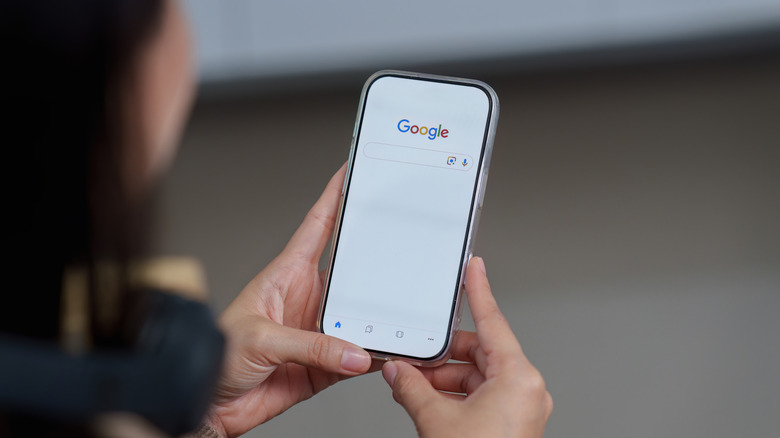
Hands holding iPhone while searching on Google

Worawee Meepian/Shutterstock

Some of the most overlooked iOS features are tucked away in the Accessibility menu, and one of them is a nifty tool that lets you use your eyes as a mouse pointer for your phone. Fittingly called Eye Tracking, it turns the iPhone’s front-facing camera into an eye tracker that follows the movement of your eyes. It then drags the on-screen pointer to where you’re looking. This allows you to navigate your device, all without having to touch the display.

Eye Tracking was first introduced in iOS 18 and works on the iPhone 12 and later. It was specifically developed as an aid for users with physical disabilities, giving them a hands-free way to use their device — no external accessories required. If you’re looking for an alternative way to control your iPhone, Eye Tracking is one of the iOS accessibility features you should try. Here’s how to turn it on.

How to enable and set up Eye Tracking on your iPhone
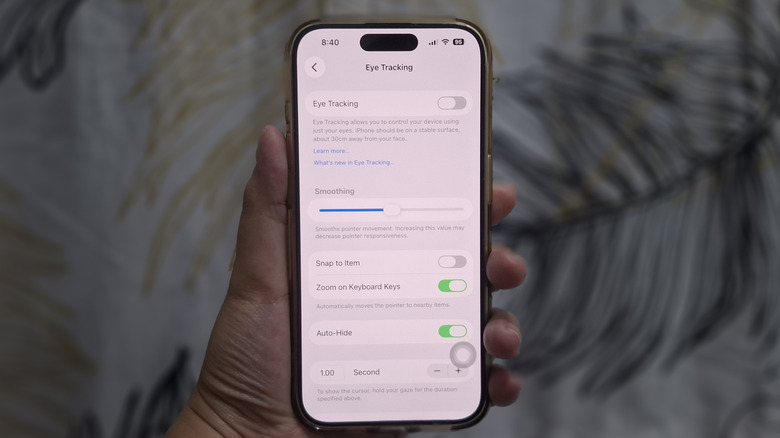
iPhone showing Eye Tracking mouse pointer settings

Marinel Sigue/BGR

Eye Tracking is disabled by default on iOS. To set it up, you first need to position your iPhone in a stable, well-lit spot, where the screen is facing you and your face is within 1.5 feet of the front camera. It’s important to keep the device very steady for the best tracking accuracy. That said, Eye Tracking won’t work as well if you’re holding and moving your iPhone, so you’ll need to either prop it up against a solid object or use a phone stand. From there, follow these next steps to turn on Eye Tracking on your iPhone:

  1. Go to Settings.
  2. Open Accessibility.
  3. Under “Physical and Motor,” select Eye Tracking.
  4. Toggle on Eye Tracking at the top.
  5. Hold still to start the calibration. You might be asked to move closer to the camera.
  6. Follow the colored dot as it moves across the screen.

Once the calibration is done, you’ll be prompted to add “dwell” and “scroll” controls to your AssistiveTouch Menu. AssistiveTouch will then appear on the screen, where you can find the buttons to scroll, go to the home screen, and open the Control Center or Notification Panel.

After setup, Eye Tracking should be ready for use. But if you want to make it work better for your needs, you can customize its settings. For instance, turn on “Snap to Item” to make the pointer jump to the closest element on the screen. You can also adjust the “Smoothing” slider. A lower setting improves the pointer’s responsiveness, while a higher value provides smoother movement.

In case you move your phone or your head sometime after setup, you can easily recalibrate Eye Tracking. Just stare at the upper-left corner of the screen until the calibration starts.

How well does the iPhone’s Eye Tracking work in real-world use?
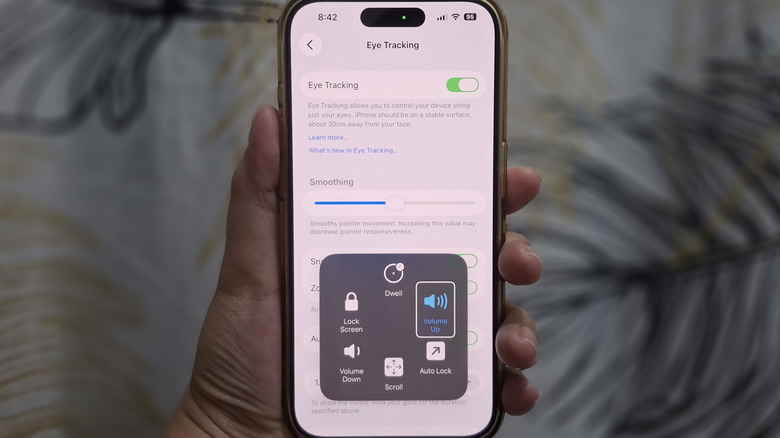
iPhone showing Eye Tracking active with AssistiveTouch open

Marinel Sigue/BGR

On paper, Eye Tracking sounds like a useful iPhone feature, but how does it perform in practice? I’ve tested the feature on an iPhone 15 Pro updated to iOS 26, and I’m happy to report that it’s quite reliable, at least for navigation.

For basic navigation — moving your gaze to an item and selecting it, the Eye Tracking pointer gets the job done. It easily snaps to app icons, menu options, and even small elements like toggles and back buttons. Just make sure you steady your gaze at an item when you want to select it.

But while Eye Tracking passes the basic navigation test, using it to type is an entirely different story. The experience is frustrating, to say the least. No matter how long I fix my gaze on a key, the pointer still has trouble selecting the letters on the outer edges of the keyboard. It wouldn’t automatically snap to keys like Q, W, A, S, O, and P. For some reason, it also doesn’t zoom into the right letter group. For instance, I wanted to select the letter D and the pointer does highlight the correct letter group. But once it zooms in, it shows me the group with G, H, and J instead of S, D, and F.

Scrolling long pages with Eye Tracking can be a pain, too. It often scrolls up and down too far, meaning you’re likely to move past the part you’re interested in. This was particularly noticeable when I tried reading a webpage, as it would skip entire paragraphs. The same thing happened when I was using the Settings app. While browsing TikTok, though, vertical scrolling worked perfectly fine. Scrolling left and right was consistent as well.


Share This Article
Email Copy Link Print
Previous Article The 10 best underground sci-fi movies to dig into now that ‘Silo’ season 3 has ended The 10 best underground sci-fi movies to dig into now that ‘Silo’ season 3 has ended
Next Article Your Phone Can Use Android Auto Without A Car – Here’s How (And Why You Should) Your Phone Can Use Android Auto Without A Car – Here’s How (And Why You Should)
Leave a Comment

Leave a ReplyCancel reply

FacebookLike
XFollow
InstagramFollow
LinkedInFollow
MediumFollow
RSS FeedFollow
Most Read
Early SpaceX investor Atreides hires co-CIO of Lone Pine

Early SpaceX investor Atreides hires co-CIO of Lone Pine

Trump invites Kim Jong Un to the Korean border, says he’d like to meet ‘just to shake his hand’

Trump invites Kim Jong Un to the Korean border, says he’d like to meet ‘just to shake his hand’

Thailand SEC proposes daily cap on stablecoin transfers at $151K

Thailand SEC proposes daily cap on stablecoin transfers at $151K

Bitcoin Users Unaffected as NASA Targets Infinite Amount of Gold

Bitcoin Users Unaffected as NASA Targets Infinite Amount of Gold

How to trade a well-paying job for more work-life balance — without going broke

How to trade a well-paying job for more work-life balance — without going broke

Billionaire Wall Street Titan Henry Kravis Places First-Ever Crypto Bet

Billionaire Wall Street Titan Henry Kravis Places First-Ever Crypto Bet

American Airlines is suspending its first route because of the 737 Max grounding

American Airlines is suspending its first route because of the 737 Max grounding

Chinese officials are forcing tourists to install an invasive app that downloads their texts and scans their phones at the border of one of the most surveilled regions in the country

Chinese officials are forcing tourists to install an invasive app that downloads their texts and scans their phones at the border of one of the most surveilled regions in the country

Bitcoin Has Every Reason to Moonshot Above $40,000, Says Billionaire Investor

Bitcoin Has Every Reason to Moonshot Above $40,000, Says Billionaire Investor

Facebook’s Social Media Platforms Crash. Will Libra Be Different?

Facebook’s Social Media Platforms Crash. Will Libra Be Different?

Related News
5 ESP32 projects that make everyday routines feel a little more magical
Gadgets

5 ESP32 projects that make everyday routines feel a little more magical

Ancient armored fish evolved two distinct ways to crush prey 385 million years ago
Gadgets

Ancient armored fish evolved two distinct ways to crush prey 385 million years ago

4 reasons my cheap Android TV box will outlast your Fire TV Stick
Gadgets

4 reasons my cheap Android TV box will outlast your Fire TV Stick

Your old Fire TV Stick is secretly a smart speaker—here’s how to turn it into one without connecting to a TV
Gadgets

Your old Fire TV Stick is secretly a smart speaker—here’s how to turn it into one without connecting to a TV

AI could make holiday planning easier for overwhelmed travelers
Gadgets

AI could make holiday planning easier for overwhelmed travelers

  • Quick Links:
  • SPORTS
  • Business
  • Gadgets
  • HEALTH
  • NEWS
  • ENTERTAINMENT
  • Virtual Reality
  • America News
  • Travel
  • WORLD NEWS
  • News World
  • Global Affairs
  • POLITICS
  • Africa News
  • Tech
Bioreports
Information You Can Trust: Stay instantly connected with breaking stories and live updates. From politics and technology to entertainment and beyond, we provide real-time coverage you can rely on, making us your dependable source for 24/7 news.
Quick Links
  • Read History
  • Economy
  • Travel
  • Global Security
  • Global Affairs
  • World
  • Technology

© Bioreports News Network. . All Rights Reserved.