


Bioreports
Tuesday, 13 Oct 2026
  • Home
  • POLITICS
  • SPORTS
  • HEALTH
  • BUSINESS
  • ENTERTAINMENT
    • Fashion
    • Fitness
    • Food
    • Travel
Newsletter
  • news
  • update
  • life style
  • tech
  • fitness
  • fashion
  • travel
  • food
BioreportsBioreports
Font ResizerAa
  • Home
  • Read History
  • Economy
  • Travel
  • Global Security
  • Global Affairs
  • World
  • Technology
  • Login
  • Blog
  • Contact
Search
  • Pages
    • Blog Index
    • Contact Us
    • Search Page
    • 404 Page
  • Pages
    • Home
    • Blog Index
    • Contact Us
    • Search Page
    • 404 Page
  • Pages
    • Home
    • Blog Index
    • Contact Us
    • Search Page
    • 404 Page
  • Personalized
    • Read History
  • Personalized
    • Read History
  • Personalized
    • Read History
  • Categories
    • Economy
    • Global Affairs
    • Technology
    • Travel
    • Global Security
  • Categories
    • Economy
    • Global Affairs
    • Technology
    • Travel
    • Global Security
  • Categories
    • Economy
    • Global Affairs
    • Technology
    • Travel
    • Global Security
Have an existing account? Sign In
Follow US
© 2026 Foxiz News Network. Ruby Design Company. All Rights Reserved.
Gadgets

This Hidden Windows Morning Start-Up Feature Makes Your Most Boring Tasks Automatic

admin
Last updated: July 16, 2026 6:19 am
By
admin
Share
7 Min Read
This Hidden Windows Morning Start-Up Feature Makes Your Most Boring Tasks Automatic
SHARE

An alarm clock on a stack of books next to a laptop and a window in a white room

izzuanroslan/Shutterstock

Almost every time you boot up your PC, you probably launch the same apps, visit the same websites, check your messages, review your calendar, and start playing some ambient audio. Then, you go through the motions of your workday and repeat the exact same routine the following morning. By now, it’s all second nature to you. But just because you’re already used to this morning PC routine doesn’t make these tasks less boring, and they’re still chores that eat up a good few minutes of your morning.

What if we told you that Windows has a hidden feature that automatically does all this for you, and all you have to do is log into your computer? That secret tool is called Task Scheduler. This tool lets you use Windows to open any installed program on your PC as soon as it detects a trigger, such as you logging in. You can also set it to launch apps based on schedules or specific events like when the PC goes idle or your workstation locks. But for your morning routine, it’s usually best to go with the login trigger, so you can get started with your day right away.

More than just launching apps, though, Task Scheduler can actually open them to specific screens. For instance, you can have Chrome open to a set of websites or Spotify open to your playlist of choice. At first look, Task Scheduler can be quite overwhelming. But don’t worry — we’ll walk you through the step-by-step process of how to use it, both for basic app launches and for opening apps to specific screens.

How to use Task Scheduler on Windows to open apps
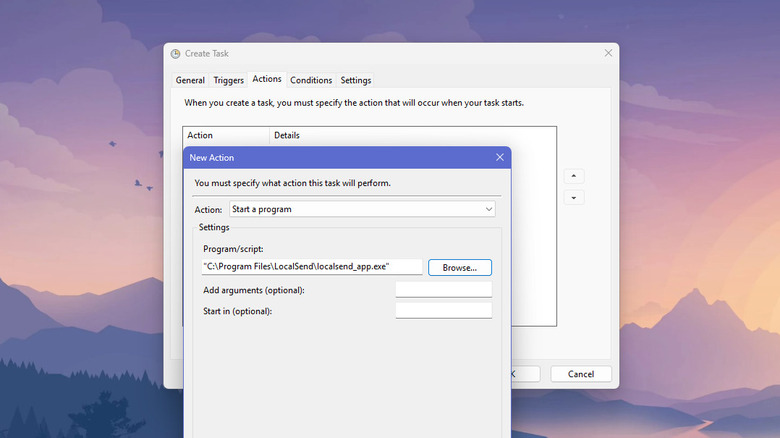
Task Scheduler showing task creation for simple app launches

Marinel Sigue/BGR

If you simply want Task Scheduler to launch an app for you, just search for Task Scheduler in the Start Menu and select the first result. Once the app is open, it’s easy to create a new task:

  1. In the Actions panel on the right, select Create Task.
  2. In the General tab, add a name for your task.
  3. (Optional) Type a description for the task, so you’ll remember what it does.

Next, set the trigger:

  1. Go to the Triggers tab and click New.
  2. Change Begin the task to At log on.
  3. Select Any user to launch the app as whichever user you log in as, or Specific user to open the app for that user only.
  4. Set Delay task for to 30 seconds or one minute. This means your app will only launch 30 or 60 seconds after login, giving your PC more time to finish loading its own processes first.
  5. Hit OK.

Finally, choose your app:

  1. Go to the Actions tab.
  2. Set the Action to Start a program.
  3. Press the Browse button and find the app’s EXE program. It’s usually in the Program Files or Program Files (x86) folder in your C: drive.
  4. Click OK, then hit OK to save the task.

If you’re launching multiple apps, create a new task for each one. Make sure to delay them accordingly, so your PC doesn’t get overwhelmed opening a bunch of Windows apps at the same time. Note that setting this up for apps installed via the Microsoft Store or with an MSIX file is a bit more complicated, involving PowerShell and running your app of choice through Command Prompt instead of directly. There’s a rough tutorial on the Microsoft forum to achieve this.

Use Task Scheduler on Windows to open apps to certain screens
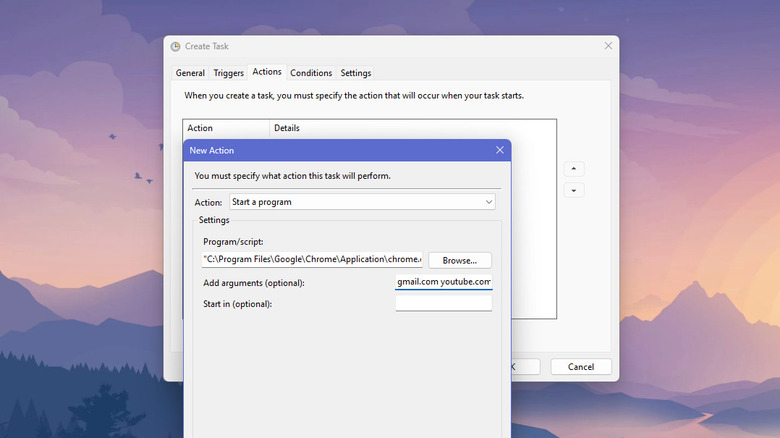
Task Scheduler showing task creation for app launches to specific screens

Marinel Sigue/BGR

Setting up Task Scheduler to launch apps to certain screens is more complex than basic app launches, but it allows you to spend less time clicking around each morning to get your apps in the right spot. The first method for setting this up is to directly add an argument for the app in Task Scheduler. This mostly works for opening browsers to specific websites (we’ve tested this on Chrome, Firefox, and Edge). Here’s how to configure it:

  1. Create a task in Task Scheduler, with the Trigger set to At log on.
  2. For the Actions, add your browser of choice (search for it in the C: drive).
  3. In the Add arguments field, type your set of websites with spaces between. For instance, you might have “gmail.com news.google.com youtube.com/@LofiGirl/videos calendar.google.com.”
  4. Click OK.
  5. Save the task.

Now, when you log in to your PC, your browser of choice will automatically launch and load those websites. Unfortunately, most other apps don’t come with arguments as simple as those for the browsers. That’s where the second method — using Uniform Resource Identifier (URI) — comes into the picture. Apps like Spotify and Slack support URIs, and you can use these URIs as the argument for the explorer.com program. In Task Scheduler, type explorer.com under Program/script and the URI in the Add arguments field. You’ll usually find the app’s URIs in its developer documentation.

If the app doesn’t have URIs for Windows, check if it supports the third method — app redirects from a browser. This means you have a website link, which automatically opens the desktop app. For this method, the Program/script is your browser of choice, and the argument is the app redirect link.


Share This Article
Email Copy Link Print
Previous Article ‘Full steam ahead’: NASA ramps up prep for Artemis III astronaut launch in 2027 ‘Full steam ahead’: NASA ramps up prep for Artemis III astronaut launch in 2027
Next Article 5 Useful Productivity Accessories Every MacBook Owner Needs 5 Useful Productivity Accessories Every MacBook Owner Needs
Leave a Comment

Leave a ReplyCancel reply

FacebookLike
XFollow
InstagramFollow
LinkedInFollow
MediumFollow
RSS FeedFollow
Most Read
BONK Recovers After Sell-Off While PEPE Tests Key Resistance—Here’s What’s Next for These Popular Memecoins

BONK Recovers After Sell-Off While PEPE Tests Key Resistance—Here’s What’s Next for These Popular Memecoins

South African rand strengthens as oil prices drop on US-Iran mediation hopes

South African rand strengthens as oil prices drop on US-Iran mediation hopes

Easy money on Polymarket and Kalshi is disappearing as prop firms deploy AI agents

Easy money on Polymarket and Kalshi is disappearing as prop firms deploy AI agents

Crypto Hacks Surged to $763M in Q2 2026 as Operational Failures Spike

Crypto Hacks Surged to $763M in Q2 2026 as Operational Failures Spike

Beefy automates concentrated liquidity for higher yields on Ethereum

Beefy automates concentrated liquidity for higher yields on Ethereum

Battle starts for places in £8bn national roads upkeep shake-up

Battle starts for places in £8bn national roads upkeep shake-up

Worldcoin Price Tumbles After $52.5M Funding Deal—Here’s What Happened

Worldcoin Price Tumbles After $52.5M Funding Deal—Here’s What Happened

Top Cryptos Other Than Bitcoin and Ethereum Poised to Benefit From the CLARITY Act

Top Cryptos Other Than Bitcoin and Ethereum Poised to Benefit From the CLARITY Act

Indonesia faces test of central bank independence after governor’s shock exit

Indonesia faces test of central bank independence after governor’s shock exit

AI stock sell-off deepens as investors dump chipmakers

AI stock sell-off deepens as investors dump chipmakers

Related News
Greece Plans Crypto Capital Gains Tax: Report
Gadgets

Greece Plans Crypto Capital Gains Tax: Report

Bitcoin Falls Below $81,000 as Oil Spikes, Fed Talks Tough
Gadgets

Bitcoin Falls Below $81,000 as Oil Spikes, Fed Talks Tough

EDX Markets and VerifiedX Partner to Bring Verified Bitcoin (vBTC) to Institutional Markets
Gadgets

EDX Markets and VerifiedX Partner to Bring Verified Bitcoin (vBTC) to Institutional Markets

Jack Dorsey’s Block Gifts One Bitcoin to Lucky ComplexCon Attendee
Gadgets

Jack Dorsey’s Block Gifts One Bitcoin to Lucky ComplexCon Attendee

The Quantum Issue: Bitcoin Quantum Exposure at Block 950,000 
Gadgets

The Quantum Issue: Bitcoin Quantum Exposure at Block 950,000 

  • Quick Links:
  • SPORTS
  • Business
  • Gadgets
  • HEALTH
  • NEWS
  • America News
  • ENTERTAINMENT
  • Travel
  • Virtual Reality
  • WORLD NEWS
  • Global Affairs
  • News World
  • POLITICS
  • Africa News
  • Tech
Bioreports
Information You Can Trust: Stay instantly connected with breaking stories and live updates. From politics and technology to entertainment and beyond, we provide real-time coverage you can rely on, making us your dependable source for 24/7 news.
Quick Links
  • Read History
  • Economy
  • Travel
  • Global Security
  • Global Affairs
  • World
  • Technology

© Bioreports News Network. . All Rights Reserved.