


Microsoft and Apple make Windows and macOS, respectively, making them the two biggest computer software manufacturers on the market, and while some peripherals cater to one or the other, many play nice and work with both environments. Even Apple’s proprietary AirPods are compatible with Windows PCs thanks to the magic of Bluetooth. Unfortunately, no matter which AirPods you use with Windows, the audio might not be as crisp as with Mac due to default driver settings.
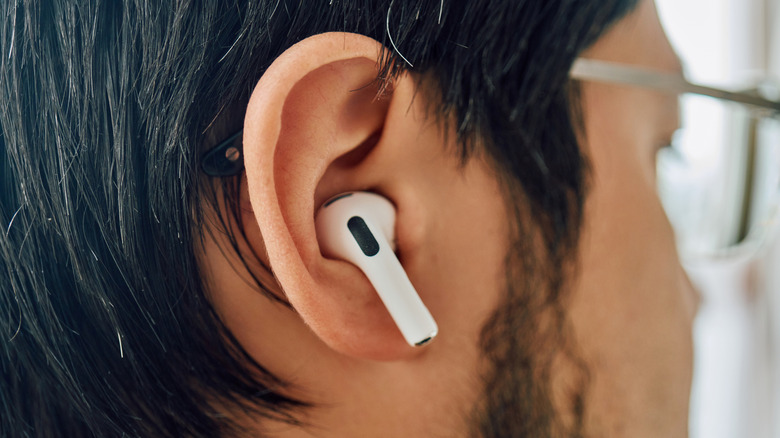
Windows likes to set AirPods as a hands-free audio device by default, prioritizing the microphone in the earbuds, thus diminishing their audio quality. This isn’t a bug but a feature of Windows’ built-in Bluetooth protocols, which are designed to manage a device’s audio inputs and outputs. Essentially, whenever you sync your AirPods to a Windows PC, the computer initially treats the device as a hands-free telephone handset, complete with receiver and transmitter, because that’s exactly what it is.
To be fair, this flaw isn’t unique to AirPods; every Bluetooth headset suffers from the same problem. Not even large, over-the-ear peripherals are immune. If your headset has a built-in microphone, Windows will assume you want to use it for a video call and tweak the audio as such.
How to fix the audio quality
Denis Borisov/Getty Images
The best way to fix a Bluetooth headset or earbud’s audio quality is to avoid that communication method in the first place. If your headphones include Bluetooth and wireless connections, use wireless to ensure the best microphone quality without compromising audio. Sadly, AirPods don’t have that option; it’s Bluetooth or nothing. So you need to work within the system to fix sound quality. If you want the best audio out of your AirPods while connected to a PC, you need to deactivate hands-free audio:
- Right-click on the speaker icon in the taskbar.
- Click on “Sound Settings.”
- Scroll down and click on “More sound settings.”
- In the new box, click on the “Airpods Stereo” option.
- Select “Set Default.”
- Click “Apply.”
- Click “OK.”
If this fix doesn’t work, you need to deactivate your AirPods’ microphones. Your computer won’t activate hands-free mode if it doesn’t detect microphones built into a Bluetooth headset. To do this:
- Right-click on the speaker icon on the taskbar.
- Select “Sound Settings.”
- Click on “More sound settings.”
- In the new box, click on “Recording.”
- In the new tab, locate and right-click on “AirPods Hands-Free AG Audio.”
- Select “Disable.”
- Click “Apply.”
- Click “Ok.”
While deactivating hands-free audio improves sound clarity and quality, this setting isn’t conducive to video calls or squad-based video game sessions. If you prioritize your earbuds’ audio but still need to talk with people, you will need to invest in a microphone. Some computers (namely laptops) include built-in mics, so you might want to purchase a podcasting microphone or a wired headset that doesn’t run into the hands-free audio problem.