Bioreports
Saturday, 15 Aug 2026
  • Home
  • POLITICS
  • SPORTS
  • HEALTH
  • BUSINESS
  • ENTERTAINMENT
    • Fashion
    • Fitness
    • Food
    • Travel
Newsletter
  • news
  • update
  • life style
  • tech
  • fitness
  • fashion
  • travel
  • food
BioreportsBioreports
Font ResizerAa
  • Home
  • Read History
  • Economy
  • Travel
  • Global Security
  • Global Affairs
  • World
  • Technology
  • Login
  • Blog
  • Contact
Search
  • Pages
    • Blog Index
    • Contact Us
    • Search Page
    • 404 Page
  • Pages
    • Home
    • Blog Index
    • Contact Us
    • Search Page
    • 404 Page
  • Pages
    • Home
    • Blog Index
    • Contact Us
    • Search Page
    • 404 Page
  • Personalized
    • Read History
  • Personalized
    • Read History
  • Personalized
    • Read History
  • Categories
    • Economy
    • Global Affairs
    • Technology
    • Travel
    • Global Security
  • Categories
    • Economy
    • Global Affairs
    • Technology
    • Travel
    • Global Security
  • Categories
    • Economy
    • Global Affairs
    • Technology
    • Travel
    • Global Security
Have an existing account? Sign In
Follow US
© 2026 Foxiz News Network. Ruby Design Company. All Rights Reserved.
Gadgets

How To Get The Best Display Settings On Motorola Phones

admin
Last updated: August 4, 2026 9:33 am
By
admin
Share
5 Min Read
How To Get The Best Display Settings On Motorola Phones
SHARE

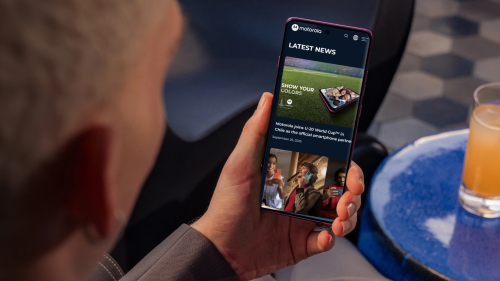
Motorola phones come with decent displays out of the box, but if you’re not a fan of that default, there are some settings you can adjust to get an even better viewing experience. Let’s start with the basics: brightness, dark mode, and Night Light.

Brightness is largely dependent on preference. You can tweak it to your liking anytime via the slider in the quick settings panel. Like many other Android phone brands, Motorola also includes an adaptive brightness setting for automatic adjustment. Dark mode is great if you find the white background too blinding and want to save on battery. You’re free to use it all day long, or you can set a schedule to activate it only at certain times. Night Light is similar to dark mode in terms of creating a more eye-friendly phone viewing experience. But instead of turning the background dark, it switches the screen glow from a bright white to a soft amber.

Beyond these basic display settings, though, there are two additional adjustments you can make to get the best display on your Motorola phone: color mode and refresh rate. Here’s where to find them.

Set a color mode

Color modes on a Motorola phone change the overall appearance of colors on the display, allowing you to set the look that fits your preference. There are three color mode options to choose from: Natural, Radiant, and Vivid. Natural, as its name suggests, displays the most accurate colors. Radiant, on the other hand, makes the colors brighter and more vibrant. Finally, Vivid gives the colors on your Motorola display a more saturated look.

While Natural seems like the safest option for many, it doesn’t have to be the default choice. Getting the best display on your Motorola phone depends a lot on your perception. You can go with any of the three color modes, then adjust the color temperature from default to warm, cool, or a custom color of your liking to better match your taste.

Here’s how to set a color mode on your Motorola phone:

  1. Launch the Settings app.
  2. Open Display.
  3. Go to Colors.
  4. Select your preferred option.
  5. Under Color temperature adjustment, tap on Warm, Cool, or any color in the color wheel.

The reference photo at the top of the page adjusts according to your changes. Once you’re happy with the result, you’re free to exit the app. It’s important to note, though, that Night Light temporarily replaces your color temperature adjustment setting. To get it back, you’d have to turn off Night Light.

Change the display refresh rate

Your phone’s refresh rate dictates how often the display updates the image on the screen. It’s measured in hertz (Hz), and the higher it is, the more responsive the interface generally becomes. Some phones are fixed at just one display refresh rate. But several modern Motorola models, including Edge 70 Fusion, G Power 2025, and Razr Fold 2026, offer three different refresh rate modes for their display.

The first is Hyper smooth, which sets the refresh rate up to the highest one your phone can go, giving you the most seamless scrolling. However, this phone screen setting affects your battery life, draining it more quickly. The opposite mode — Efficiency first — lowers the refresh rate down to 60 Hz. Your Motorola phone display won’t feel as smooth, but on the upside, you get to extend your phone’s battery life. The last mode, Smart and balanced, is the best of both worlds. The display still feels responsive enough while making sure your battery doesn’t run down as fast as when using Hyper smooth.

To change the refresh rate and get the best display on your Motorola phone, follow these steps:

  1. Open Settings.
  2. Go to Display.
  3. Under Appearance, choose Display refresh rate.
  4. Tap on the refresh rate you’d like to use.

From here, try scrolling and browsing on your phone to check the difference. The refresh rate you set will be active unless you enable Battery Saver. During this mode, you automatically get a maximum of only 60 Hz to help you preserve your battery.


Share This Article
Email Copy Link Print
Previous Article Who Owns Nokia? Who Owns Nokia?
Next Article Is The Xbox Series X More Powerful Than The PlayStation 5? Is The Xbox Series X More Powerful Than The PlayStation 5?
Leave a Comment

Leave a ReplyCancel reply

FacebookLike
XFollow
InstagramFollow
LinkedInFollow
MediumFollow
RSS FeedFollow
Most Read
Top Cryptos Other Than Bitcoin and Ethereum Poised to Benefit From the CLARITY Act

Top Cryptos Other Than Bitcoin and Ethereum Poised to Benefit From the CLARITY Act

Indonesia faces test of central bank independence after governor’s shock exit

Indonesia faces test of central bank independence after governor’s shock exit

AI stock sell-off deepens as investors dump chipmakers

AI stock sell-off deepens as investors dump chipmakers

Punjab National Bank gets nod to raise $1.5 billion through foreign currency bond programme

Punjab National Bank gets nod to raise $1.5 billion through foreign currency bond programme

US stock futures extend gains slightly after economic data

US stock futures extend gains slightly after economic data

FTX Repayments: Creditors to Receive Another $900 Million

FTX Repayments: Creditors to Receive Another $900 Million

Ethena (ENA) Price Consolidates Near Key Resistance While Bulls Await Confirmation—Here’s What’s Next

Ethena (ENA) Price Consolidates Near Key Resistance While Bulls Await Confirmation—Here’s What’s Next

Bomb kills three and wounds 21 at central Moscow restaurant

Bomb kills three and wounds 21 at central Moscow restaurant

Argentina’s farm exports fall 28% in July to $2.92 billion

Argentina’s farm exports fall 28% in July to $2.92 billion

Coinbase to Move Institutional Clients to Deribit Ahead of September Migration

Coinbase to Move Institutional Clients to Deribit Ahead of September Migration

Related News
I turned off my TV’s stereo-only audio mode and finally heard my Dolby Atmos setup
Gadgets

I turned off my TV’s stereo-only audio mode and finally heard my Dolby Atmos setup

I turned off 3 iPad settings and my 8-year-old iPad Pro finally stopped lagging
Gadgets

I turned off 3 iPad settings and my 8-year-old iPad Pro finally stopped lagging

I Tried the Android App That’s Helping People Around the World Bypass Censorship Laws
Gadgets

I Tried the Android App That’s Helping People Around the World Bypass Censorship Laws

I found the best location to plant shade trees around my house with this free app
Gadgets

I found the best location to plant shade trees around my house with this free app

Sprinting vs. Jogging: The Benefit Is in the Blood
Gadgets

Sprinting vs. Jogging: The Benefit Is in the Blood

  • Quick Links:
  • SPORTS
  • Business
  • HEALTH
  • NEWS
  • ENTERTAINMENT
  • Gadgets
  • Virtual Reality
  • WORLD NEWS
  • POLITICS
  • News World
  • Travel
  • Global Affairs
  • Africa News
  • America News
  • Tech
Bioreports
Information You Can Trust: Stay instantly connected with breaking stories and live updates. From politics and technology to entertainment and beyond, we provide real-time coverage you can rely on, making us your dependable source for 24/7 news.
Quick Links
  • Read History
  • Economy
  • Travel
  • Global Security
  • Global Affairs
  • World
  • Technology

© Bioreports News Network. . All Rights Reserved.